The Patient Intake Form
This is the form your patients fill out before their visit, using the link from your clinic settings. You can share it by text, email, or a printed QR code. Patients can use any phone, tablet, or computer.
This page shows you what your patients will see, so you can help them if they get stuck.
Choosing a language
When a patient opens the link, they first pick a language.
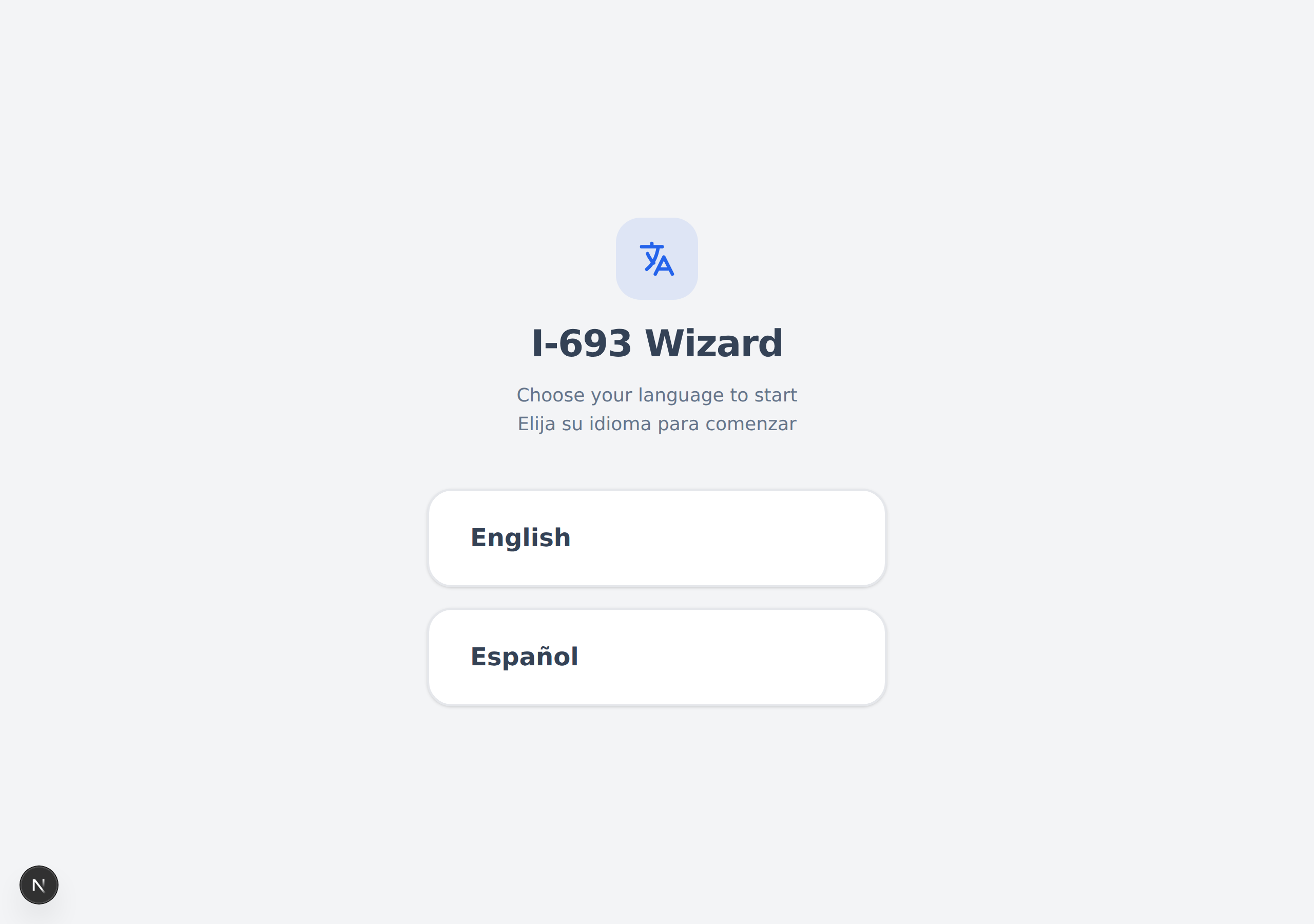
- The patient taps the white "English" button or the white "Español" button.
- The whole form then appears in that language.
The 7 steps
After choosing a language, the patient moves through 7 short steps. A row of numbered circles at the top shows their progress: a green check means a step is done, a blue circle is the step they are on, and a gray circle is a step still to come.
The steps are:
- Name
- Personal Details
- Immigration IDs
- Home Address
- Contact Info
- Additional Roles
- Review
Step 1: Name
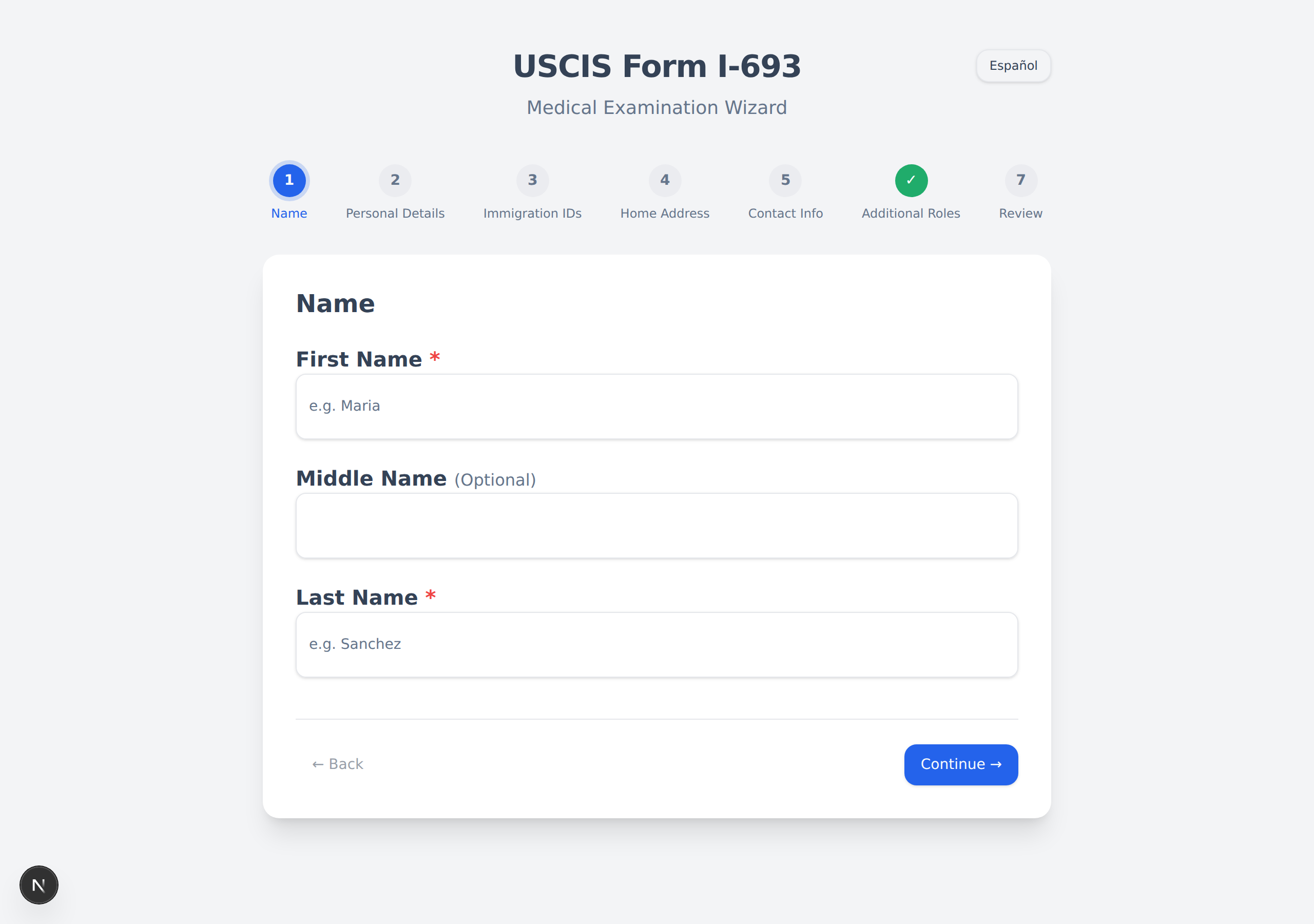
- The patient types their First Name and Last Name. (Middle Name is optional.)
- They click the blue "Continue →" button at the bottom-right.
A red star (*) means a box is required. The form will not let the patient continue until every required box is filled in.
Step 2: Personal Details
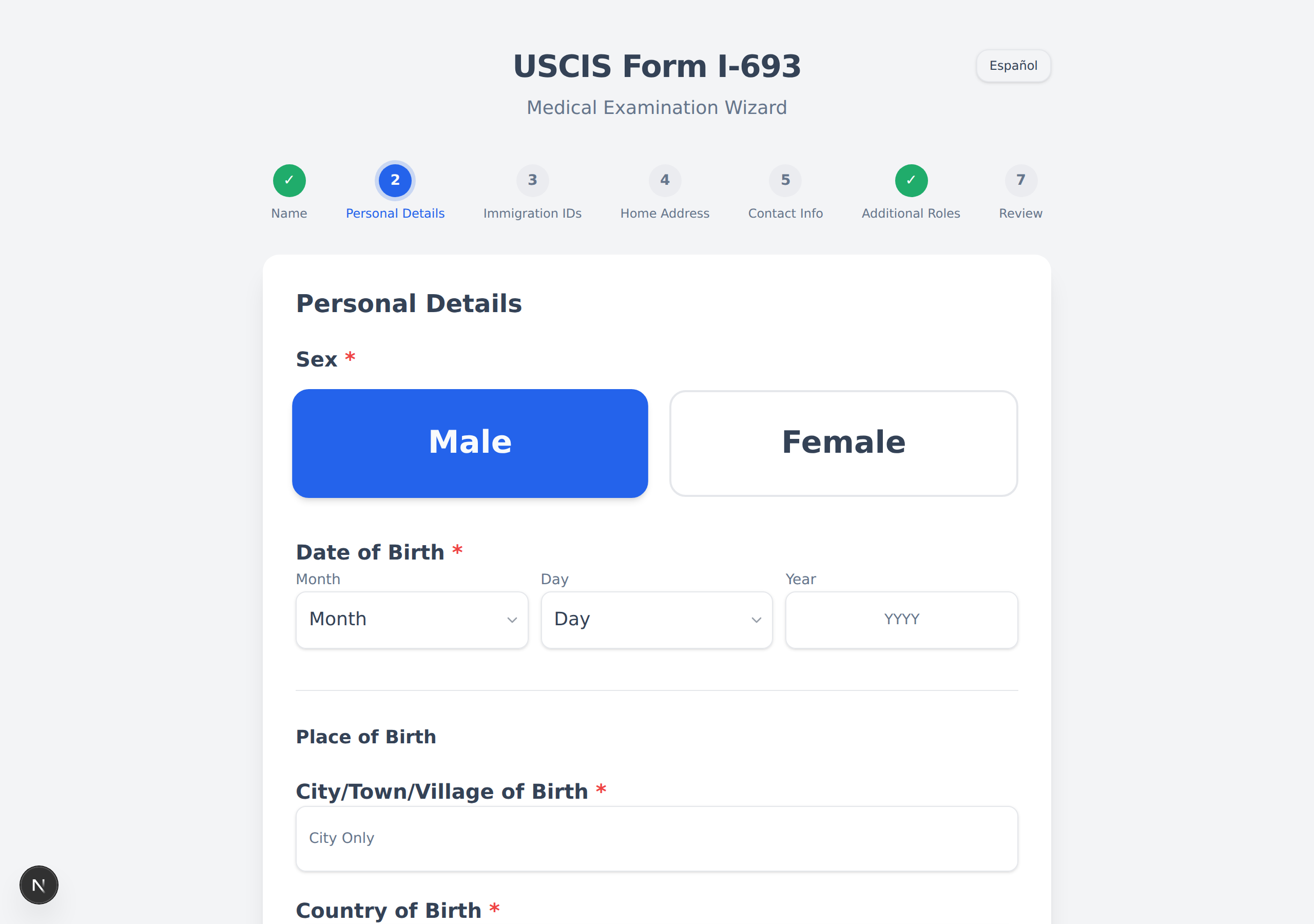
The patient chooses their Sex (tap Male or Female — the choice turns blue), picks their Date of Birth (Month, Day, and 4-digit Year), and types their City of Birth and Country of Birth.
Steps 3–6: IDs, Address, Contact, and Roles
- Immigration IDs — The patient answers whether they have an A-Number or USCIS account number. (Most U.S. citizens do not have these.) If they tap No, the boxes stay hidden.
- Home Address — Their current U.S. street address, city, state, and ZIP code.
- Contact Info — A daytime phone number and an email address.
- Additional Roles — Whether an interpreter helped them, and whether someone else (a preparer) filled the form out for them.
Step 7: Review
On the last step, the patient checks a summary of everything they typed.
- They read it carefully to make sure the name spelling, date of birth, address, and phone number are correct.
- To fix something, they click "← Back" to return to an earlier step.
- When everything looks right, they click the green "Confirm" button.
- They see a "Success!" message.
Tell patients to bring their immunization (shot) records to the appointment. The form reminds them on the last step, but a heads-up helps.
After a patient confirms, their information appears on your Dashboard as a new card.
Next: Your Dashboard →