Preview & Generate the PDF
When the form is filled in, you create the finished I-693 PDF. You can preview it first to check your work.
Preview as you go
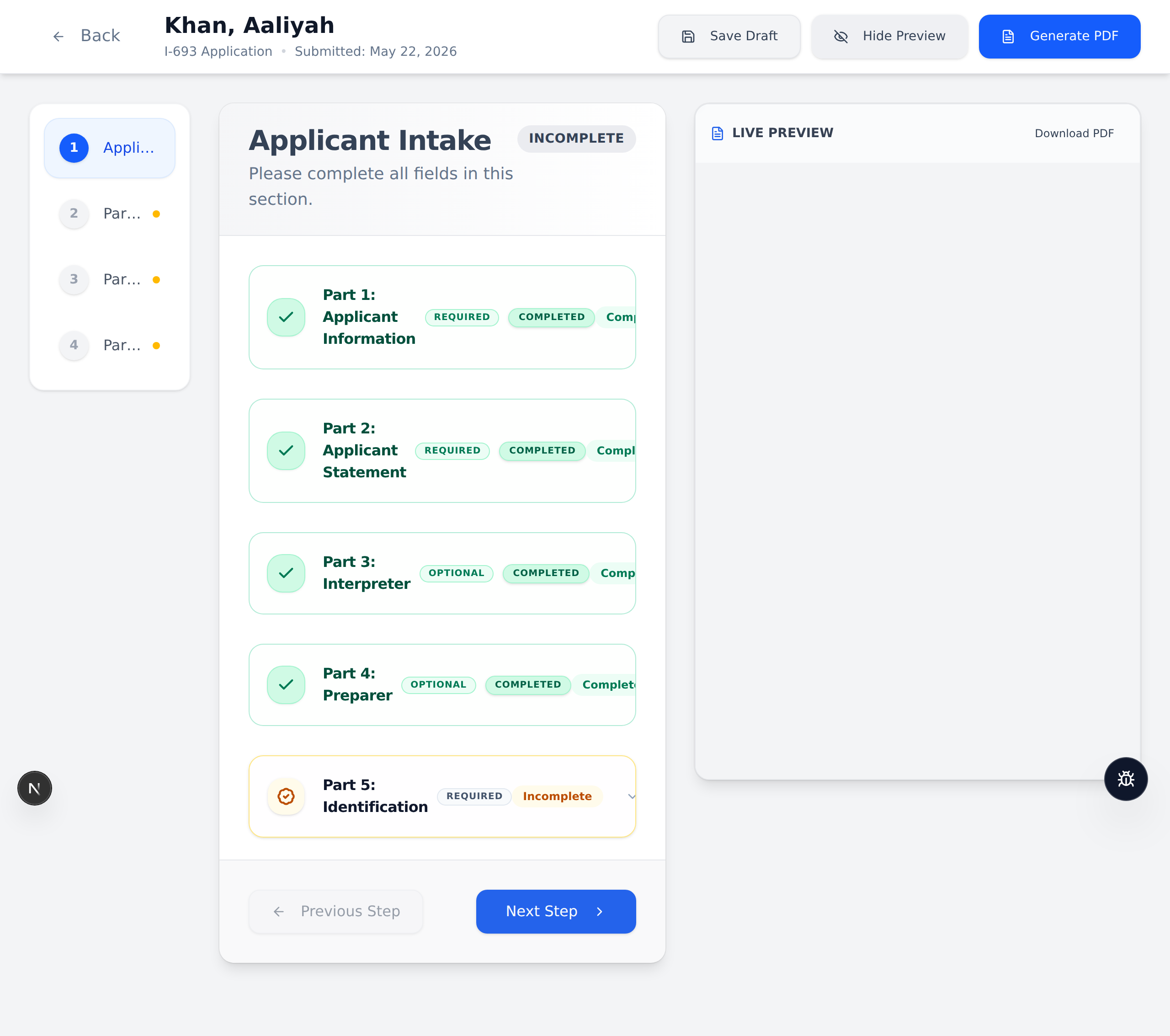
- In the top bar of the editor, click the white "Preview PDF" button.
- A "Live Preview" panel opens on the right side, showing the real I-693 with your information filled in.
- As you add more details and save, the preview updates.
- Click the button again (now labeled "Hide Preview") to close the panel and get more room.
tip
Use the preview to double-check that information landed in the right boxes — it is especially handy for vaccine dates and TB results.
Generate the final PDF
- Click the blue "Generate PDF" button in the top bar.
- If everything is complete, the PDF downloads to your computer. The file is named like
I-693_LastName_FirstName.pdf. - If something is missing, a box appears listing what is incomplete. You can click "Go Back" to finish those parts, or "Download Anyway" to download the form with some boxes left empty.
- After it downloads, the patient's status changes to "PDF Generated".
You can also download a PDF straight from the Dashboard using the blue download icon on a patient's card.
warning
The downloaded PDF is a filled-in copy of the official I-693. It still needs to be printed and signed by both the civil surgeon and the applicant.
note
You can re-open a record and make changes at any time, even after generating a PDF. Just click "Generate PDF" again to get an updated copy.
Next: Tips & FAQ →