Completing a Submission
This is the main part of your job: adding the exam and vaccine details. From the Dashboard, click "Complete →" (or "Edit →") on a patient's card to open the editor.
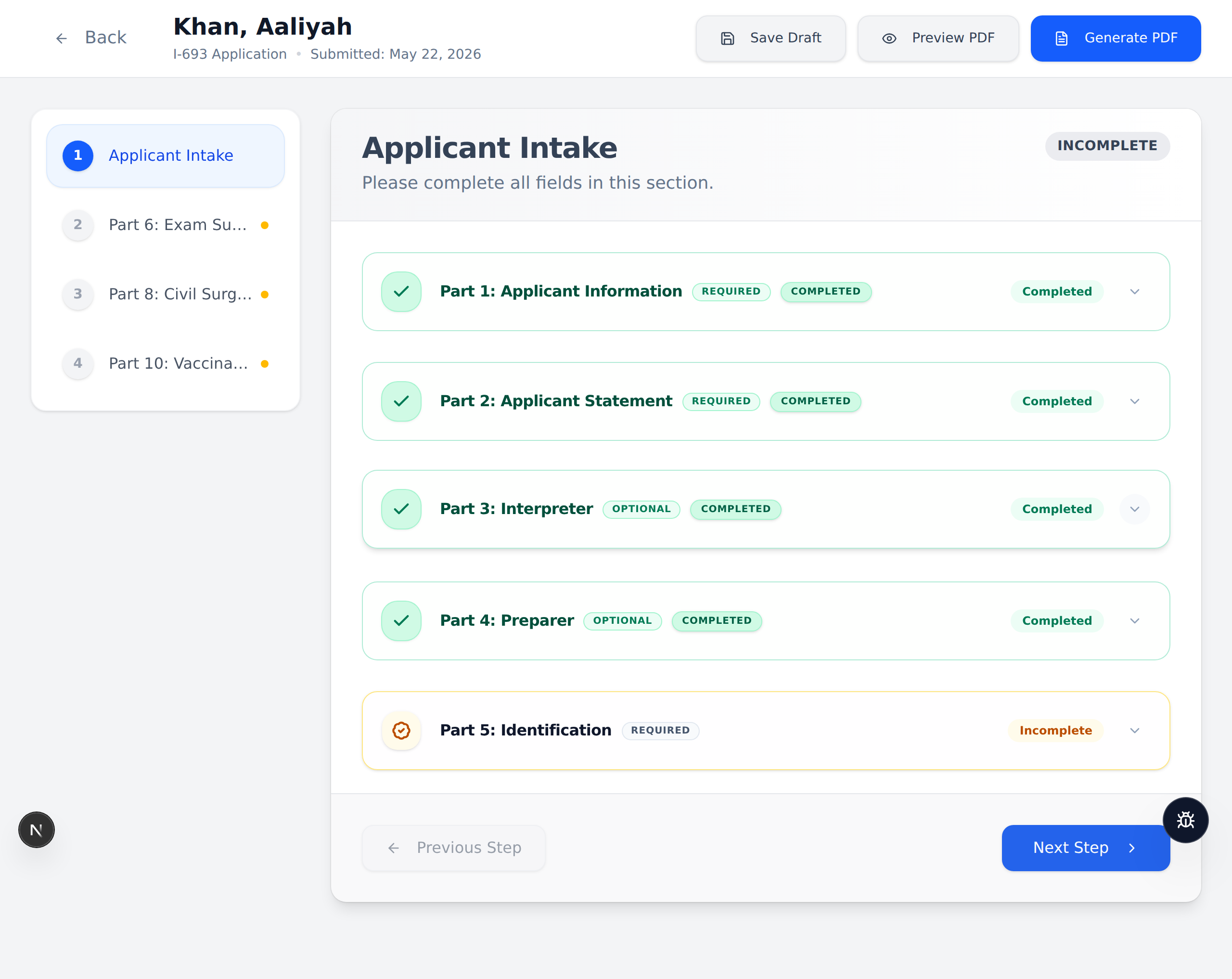
How the editor is laid out
- Top bar — the patient's name and these buttons:
- "Save Draft" (white) — saves your work. It shows "Saved!" in green when it works.
- "Preview PDF" (white) — shows a live preview of the form on the right (see the next page).
- "Generate PDF" (blue) — creates and downloads the finished PDF.
- Left side — the four steps of the form. Click any step to jump to it.
- Middle — the boxes you fill in for the step you are on.
Click "Save Draft" before you close the page or sign out. Your typing is not saved automatically, so save as you go.
On the left, each step shows a small mark: an orange dot means something still needs to be filled in, and a green check means that step is done. Use "Previous Step" and "Next Step" at the bottom to move along.
Step 1: Applicant Intake (Parts 1–5)
This step holds five sections you can open and close. Click a section title to open it.
- Part 1: Applicant Information (required) — name, address, date of birth, and so on. If the patient used your link, this is already filled in.
- Part 2: Applicant Statement (required) — usually filled in from the patient's form.
- Part 3: Interpreter (optional) — only fill in if an interpreter helped.
- Part 4: Preparer (optional) — only fill in if someone else prepared the form.
- Part 5: Identification (required) — the patient's ID document (type, number, who issued it, and expiration date).
Part 5 (Identification) must be filled in by your office. The online patient form does not collect ID document details, so you add them here.
Step 2: Part 6 — Exam Summary
Record the overall result of the exam:
- Date of First Examination.
- Overall Finding — choose one: No Class A or Class B Condition, Class B Condition, or Class A Condition.
- Follow-Up Exam Dates and Remarks if needed.
If you mark a Class B Condition, the form asks for a follow-up exam date. This is required and the form will remind you.
Step 3: Part 8 — Civil Surgeon Worksheet
This is the most detailed step. It lists the disease screenings as sections you open one at a time. The website automatically shows only the sections that apply to the patient's age and hides the rest. A blue note at the top tells you which sections were hidden and why.
| Screening | Required for |
|---|---|
| TB (IGRA blood test) | Age 2 and older |
| Syphilis | Ages 18–44 |
| Gonorrhea | Ages 18–24 |
| Hansen's Disease | All ages |
| Physical/Mental Disorders | All ages |
| Drug Abuse and Addiction | All ages |
| Other Conditions | All ages |
How Tuberculosis (TB) works
- Enter the IGRA blood test result (Positive, Negative, or Indeterminate).
- A Chest X-Ray section appears only if the IGRA is Positive.
- The website figures out the TB classification for you from the results:
| Results | Classification |
|---|---|
| Positive sputum | Class A |
| Positive IGRA + abnormal X-ray | Class B1 |
| Positive IGRA + normal X-ray | Class B2 |
| Negative IGRA | No Class |
For most screenings, if a test was refused or could not be done, you can choose the "Not Performed" option and write the reason. The website then leaves that row blank on the official form, which is what USCIS expects.
Step 4: Part 10 — Vaccination Record
Record the patient's shots. The website knows which of the 12 required vaccines apply at the patient's age.
For each vaccine, do one of these:
- Enter the dose date(s) from the patient's records, or
- Mark it Complete, or
- Choose a waiver reason (for example, Not Age Appropriate, Contraindication, Insufficient Time, or See Below).
Use only one mark per vaccine row — either dates or a waiver, not both. Also note: COVID-19 vaccination is no longer required for the I-693 (as of January 22, 2025), so it is not on the list.