Set Up Your Clinic
Do this once, before you see any patients. The website will remember your details and fill them in on every form for you. You also get your patient intake link here.
To open this page, click "Settings" on your Dashboard, or go to civilsurgeon.app/dashboard/settings.
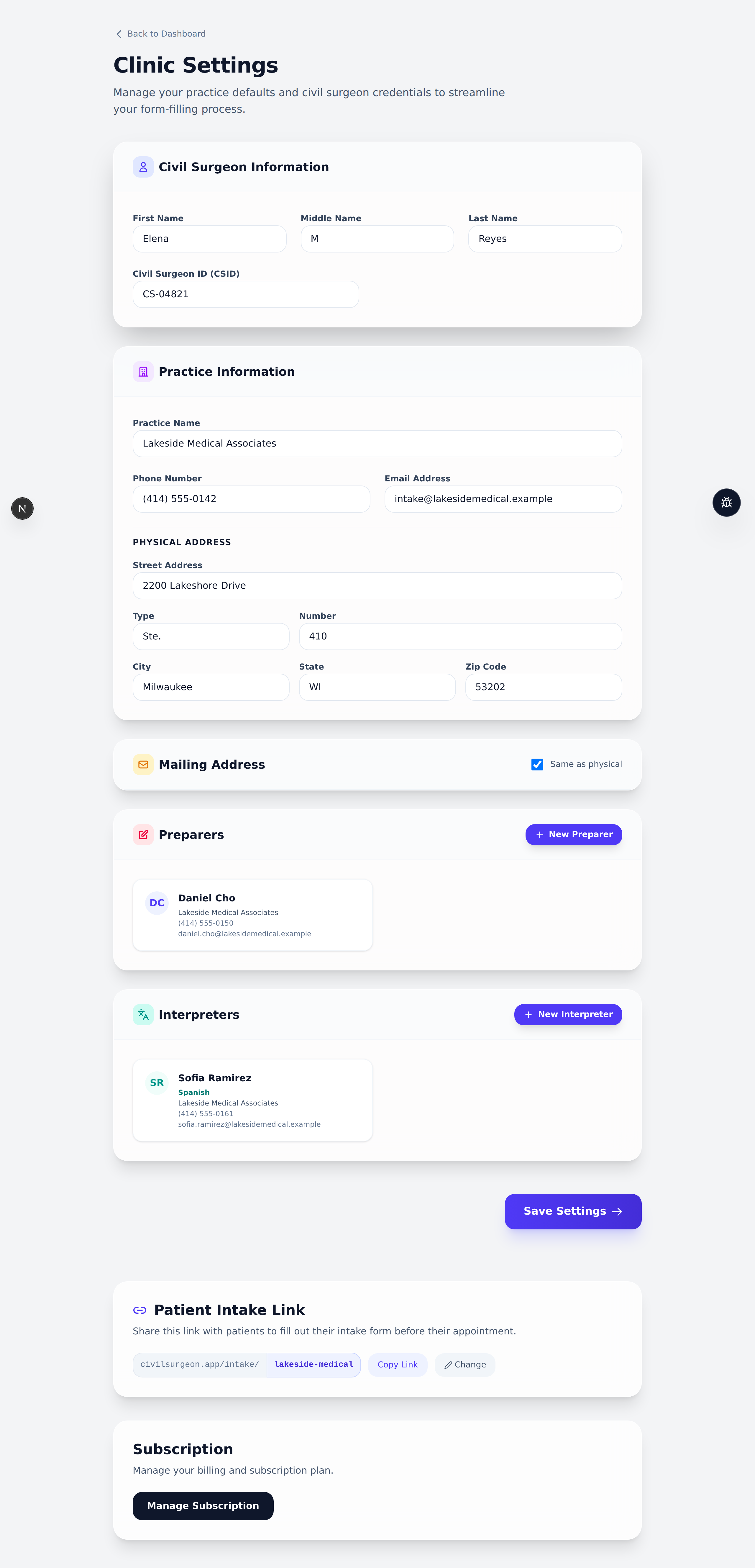
Step 1: Civil Surgeon Information
This is the doctor who performs the exam. Fill in:
- First Name
- Middle Name (you can leave this blank)
- Last Name
- Civil Surgeon ID (CSID)
Your Civil Surgeon ID (CSID) is the number USCIS gave you. The I-693 form is not valid without it, so double-check that it is correct.
Step 2: Practice Information
Fill in your clinic's details:
- Practice Name
- Phone Number
- Email Address
- Under Physical Address: Street Address, then (if needed) a Type such as Ste. or Apt. and its Number, then City, State, and Zip Code.
Step 3: Mailing Address
If your mailing address is the same as your physical address, leave the "Same as physical" checkbox checked. If it is different, click the checkbox to uncheck it, then fill in the mailing address boxes that appear.
Step 4: Preparers and Interpreters (optional)
If a helper often prepares forms or interprets for patients, you can save them here so you do not have to retype them.
- Click the blue "+ New Preparer" (or "+ New Interpreter") button.
- Fill in their name and contact details.
- Repeat to add more than one.
Step 5: Save your settings
Scroll to the bottom and click the purple "Save Settings" button. You will see a green "Settings saved successfully!" message.
You only need to do Steps 1–5 one time. After that, your details are filled in automatically on every patient's form.
Your Patient Intake Link
Lower on the page, the "Patient Intake Link" section shows your unique link, for example:
civilsurgeon.app/intake/your-practice
- Click "Copy Link" to copy it. This is the link you send to patients.
- Click "Change" if you ever need to pick a different link.
If you change your link later, any link you already gave to patients will stop working. Only change it if you really need to.
Manage your subscription
At the very bottom, the "Subscription" section has a "Manage Subscription" button. Click it to update your card, see invoices, or cancel.